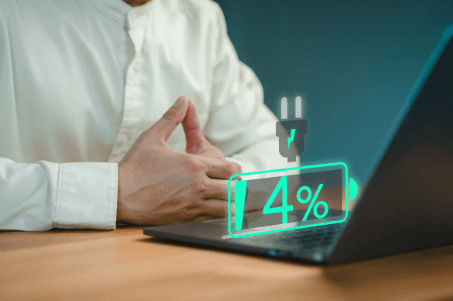
It can be stressful when you press the power button and nothing happens. If your laptop won’t turn on, there may be several possible reasons behind the issue. Some problems are minor and easy to solve, while others may need technical repair. Before panicking, it helps to understand the most common causes and practical solutions.
This guide will walk you through the best troubleshooting steps to take when your laptop refuses to power on.
Check the Power Supply First
One of the simplest explanations for a laptop won’t turn on problem is a lack of power. If the battery is empty or the charger is faulty, the laptop cannot start.
What to Do:
- Plug the charger securely into the laptop and wall socket
- Check whether the charging light turns on
- Try another wall outlet
- Test with a compatible charger if available
If the laptop starts after charging, the battery may have simply been drained.
Perform a Hard Reset
Sometimes leftover electrical charge inside the laptop can prevent startup.
Steps:
- Unplug the charger
- Remove the battery if possible
- Hold the power button for 15 to 20 seconds
- Reinsert the battery
- Plug in the charger and try again
This method often fixes temporary power issues.
Look for Signs of Life
Even if the screen stays black, the laptop may still be on.
Check for:
- Keyboard lights
- Fan noise
- Charging indicators
- Hard drive activity sounds
If you notice these signs, the display may be the actual problem.
Test the Display
Many people think their laptop won’t turn on, but the screen has failed instead.
Try This:
- Increase brightness using keyboard shortcuts
- Connect an external monitor or TV
- Restart the laptop while connected to another display
If the external monitor works, the laptop screen may need repair.
Disconnect External Devices
USB drives, printers, keyboards, or accessories can interfere with startup.
Solution:
Remove all connected devices and try powering on again. Sometimes the laptop attempts to boot from an external device and fails.
Check for Overheating
If the laptop recently became hot or shut down unexpectedly, overheating may be the issue.
Fix:
- Let the laptop cool for 30 minutes
- Clean air vents
- Use the laptop on a flat surface
- Avoid blocking fans
Dust buildup can also cause repeated overheating.
Hardware Issues to Consider
If your laptop won’t turn on after trying basic fixes, internal hardware could be responsible.
Common Hardware Causes:
- Faulty RAM
- Dead battery
- Broken charging port
- Hard drive failure
- Motherboard damage
Some of these issues require professional diagnosis.
Listen for Beeps or Watch Lights
Many laptops provide error codes through blinking LEDs or beep sounds.
Example:
- Repeated beeps may indicate RAM failure
- Power light blinking patterns may signal motherboard errors
Check the manufacturer’s website for your model’s error code meanings.
When to Replace the Battery
Older batteries lose capacity over time. If the laptop only works while plugged in or refuses to charge properly, battery replacement may solve the issue.
When to Call a Technician
You should seek repair help if:
- The laptop shows no lights or response
- You smell burning or see damage
- The charger port feels loose
- The laptop turns on briefly then shuts off
- DIY troubleshooting does not work
A technician can safely test components and recover data if needed.
Prevent Future Startup Problems
To avoid situations where your laptop won’t turn on, follow these tips:
- Keep the laptop clean and dust-free
- Avoid overcharging with poor-quality chargers
- Shut down properly
- Keep liquids away
- Use surge protection
- Update software regularly
Final Thoughts
When your laptop won’t turn on, the issue may be as simple as a drained battery or as serious as internal hardware failure. Start with basic troubleshooting such as checking power, performing a reset, and testing the display. These steps solve many common problems. If the issue continues, professional repair can help restore your laptop and protect your files.